FW Loader
Applications for remote firmware updates for Movicom devices.
The current version can be downloaded from the link:
- Download FW_loader.zip
Firmware File Downloads
To update the firmware of MOVICOM devices (such as Robyhead), you must use the application “MovicomFirmwareUpdate.exe”. After downloading the archive containing “FW_loader.zip”, extract it to a separate working folder on your computer (like your desktop). Once extracted, the folder will contain the files shown in Figure 1.
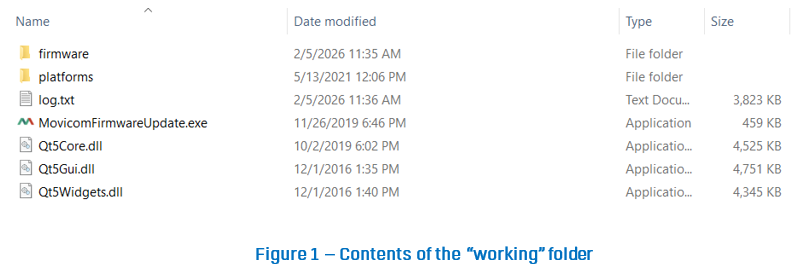
Next, download the latest firmware version from the Firmware section.
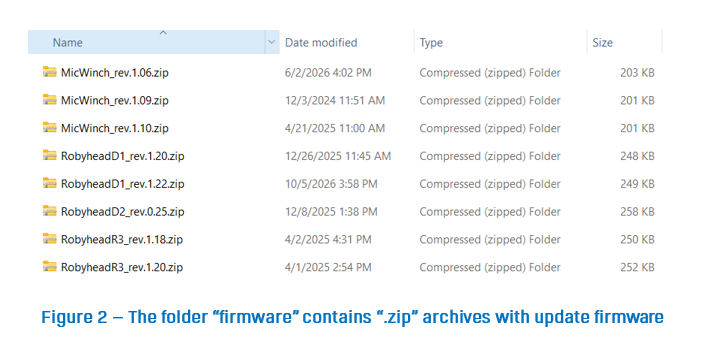
The firmware is provided as a ".zip" archive file.
Download the archive and place it in the "firmware" folder of the "working" folder shown in Figure 1.
Do NOT extract the contents of the archive.
An example of the correct placement is shown in Figure 2.
You are now ready to connect the device to your computer. Using an Ethernet cable, connect the device (for example, Robyhead) to your computer, then power on the device. After completing the steps above and confirming that the computer is connected to the device, you can proceed with the firmware update procedure.
Firmware Instructions
1. Run the program “MovicomFirmwareUpdate.exe” as an administrator. A window will open:
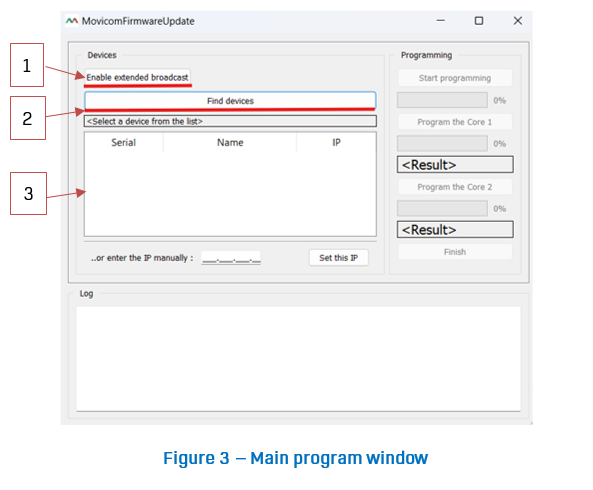
2. In the window that opens, click button “Enable extended broadcast”.
Since the program uses broadcast packets for searching devices, make sure that your net settings are correct and firewall is disabled.
3. After, click button “Find devices”. A list of connected devices will appear in field number three. If nothing appears after pressing the "find" button, you need to check the connection settings: disconnect the firewall, check the connection of the ethernet cable.
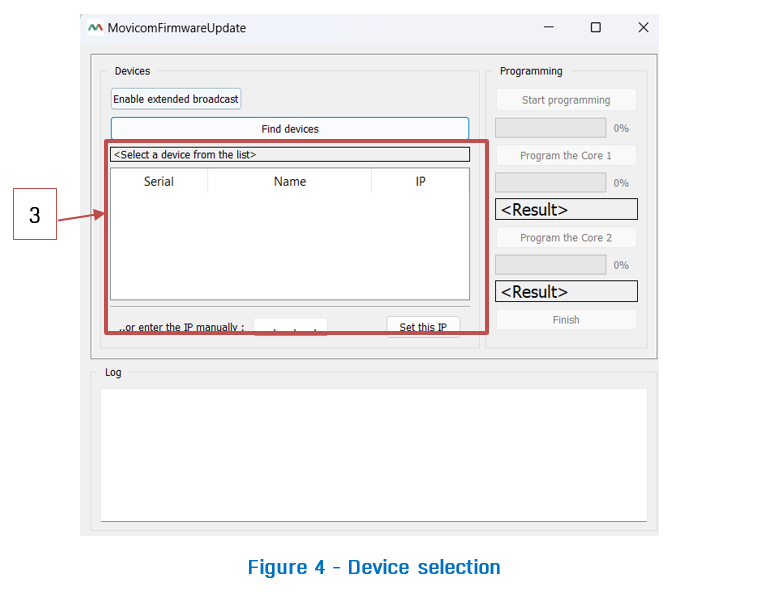
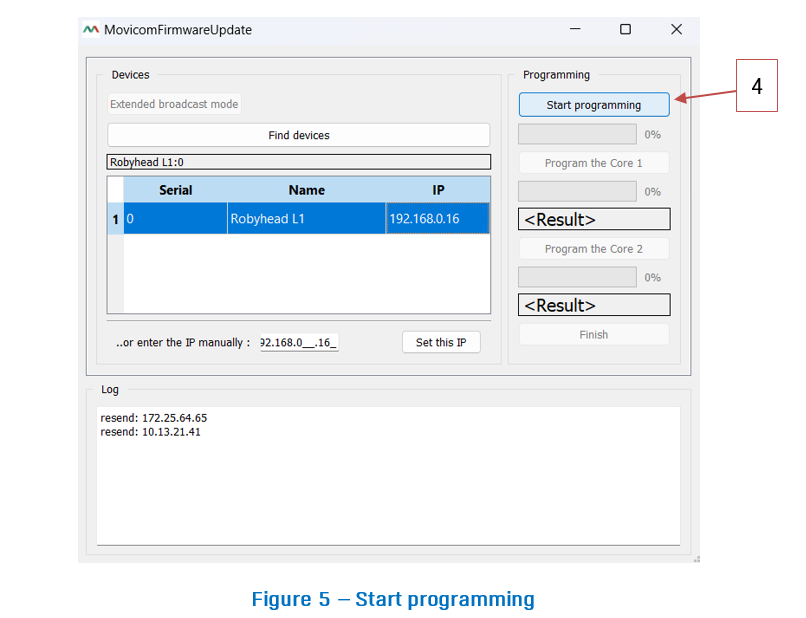
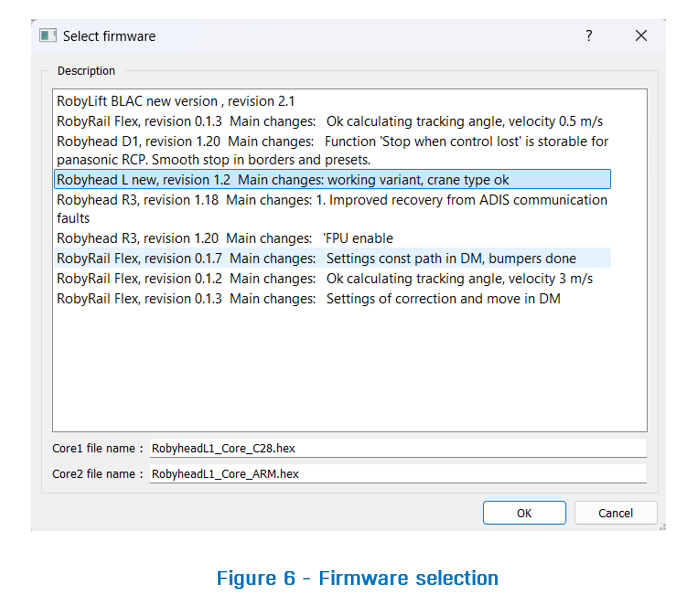
4. Choose a device and click “Start programming”. A new window will open in which a list of firmware versions will be presented. The “firmware” folder may contain multiple firmware, for different devices. You must select the one you need and click “OK”.
5. Next click “Program the Core1”. Then wait for the result field to light up with the "successful" flag. If an error immediately appears when starting programming, make sure that your PC is in the same local network as Robyhead.
It is important not to interrupt the process or turn off the device's power during the firmware.6. Next click “Program the Core2”. Then wait for the result field to light up with the "successful" flag.
7. Next click “Finish” and turn off the device.
8. The firmware update is finished.
9. If an error occurs during updating one of the cores for example because of power loss, then try to repower the head and repeat from the first point.
If after this the head is not found by searching, then probably the main program is damaged. In this case contact the manufacturer to get additional recovery software.